
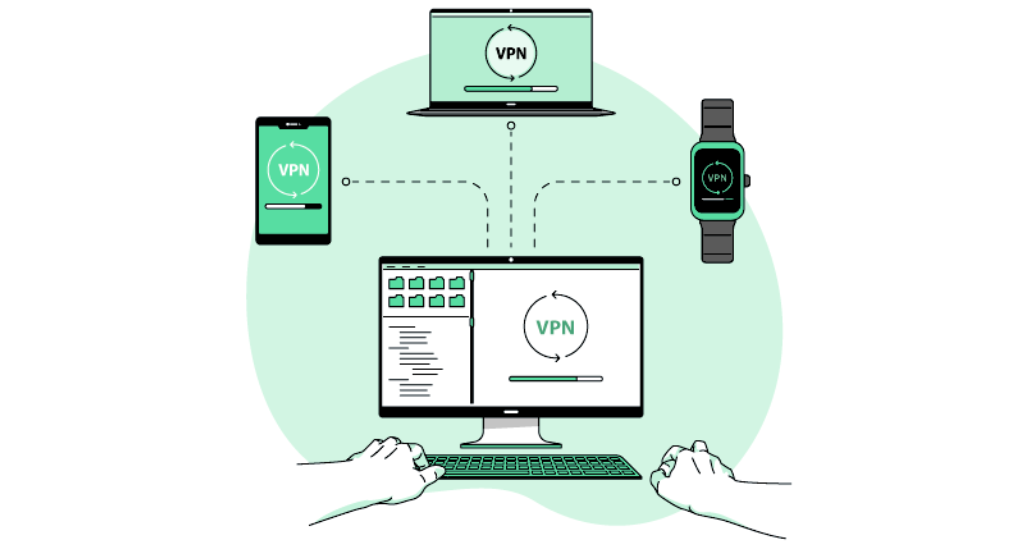
If you are working with Linux graphical applications on Windows using WSL (Windows Subsystem for Linux), VcXsrv is one of the most popular X-server tools to make that possible. However, many users also want the added privacy, security, or geo-access benefits of a VPN while running these applications. This guide will walk you through how to connect a VPN to VcXsrv correctly, without breaking display forwarding or network access.
By the end of this article, you’ll understand how VPNs interact with VcXsrv, common issues users face, and how to fix them step by step.
Understanding How VcXsrv Works with Networking
VcXsrv acts as an X-server that allows Linux GUI applications to display on your Windows machine. It relies heavily on network communication, even though everything may appear to be running locally.
When you introduce a VPN into the setup, the network routing can change. This is why some applications stop displaying or fail to connect once the VPN is enabled. The goal is to make sure both WSL and VcXsrv can communicate smoothly through the VPN tunnel.
Just like when people research unrelated technical or personal topics, such as deciding whether to buy home drug test kit solution online, clear setup steps matter. Without the right configuration, results can be misleading, whether it’s software or anything else that depends on accurate data flow.
Prerequisites Before You Start
Before connecting a VPN to VcXsrv, make sure you have the following ready:
- Windows 10 or Windows 11
- WSL or WSL2 installed
- VcXsrv installed and working without VPN
- A VPN client (OpenVPN, NordVPN, ExpressVPN, etc.)
- Basic access to Linux terminal commands
It’s best to test VcXsrv without the VPN first to confirm everything works normally.
Step 1: Launch VcXsrv with Correct Settings
Start by launching VcXsrv using XLaunch and apply these recommended settings:
- Display settings: Multiple windows
- Client startup: Start no client
- Extra settings:
- ✅ Disable access control
- ❌ Native OpenGL (disable if issues occur)
Disabling access control is important because VPNs often change IP addresses, which can otherwise block connections.
Step 2: Connect Your VPN on Windows
Next, connect your VPN on the Windows host, not inside WSL.
Once connected:
- Confirm internet access is working
- Check that your IP address has changed
- Keep the VPN running in the background
Most VPN clients automatically route all traffic, including WSL traffic, through the tunnel.
Step 3: Configure DISPLAY Variable in WSL
Now open your WSL terminal and set the DISPLAY variable so Linux applications know where to send their graphical output.
For WSL2, use this command:
export DISPLAY=$(cat /etc/resolv.conf | grep nameserver | awk ‘{print $2}’):0
To make it permanent, add it to your ~/.bashrc or ~/.zshrc file.
This step ensures VcXsrv receives display data even when your VPN changes the network interface.
Step 4: Allow VcXsrv Through Firewall and VPN
Some VPNs include built-in firewalls or kill switches that block local traffic.
Check the following:
- Windows Defender Firewall allows VcXsrv.exe
- VPN settings allow local network traffic
- Split tunneling is disabled (or configured properly)
If GUI apps don’t show up, this is often the cause.
Step 5: Test the Connection
Run a simple Linux GUI app to test everything:
xclock
or
xeyes
If the window appears, your VPN and VcXsrv are working together correctly.
Common Issues and How to Fix Them
Black Screen or No Display
- Disable OpenGL in VcXsrv
- Restart VcXsrv after connecting the VPN
“Cannot Open Display” Error
- Recheck DISPLAY variable
- Make sure access control is disabled
Slow or Laggy GUI
- Try a different VPN server location
- Use UDP instead of TCP in VPN settings
Security and Privacy Considerations
Using a VPN with VcXsrv adds an extra layer of privacy, especially when working on shared or remote networks. This is helpful when handling sensitive data, just as clarity and accuracy matter in completely different contexts like understanding whether does cbd show on a drug test in the uk depends on THC content, usage, and testing thresholds and you can check a proper guide from here.
In both cases, small configuration details can change outcomes significantly.
Best Practices for Stable Performance
To keep everything running smoothly:
- Always start VcXsrv before launching Linux GUI apps
- Connect the VPN before opening WSL
- Avoid switching VPN servers while apps are running
- Keep VcXsrv and WSL updated
Consistency helps prevent random connection drops or display errors.
Final Thoughts
Connecting a VPN to VcXsrv may sound complicated at first, but once you understand how networking and display forwarding work together, the setup becomes straightforward. By following the steps in this guide, you can enjoy secure, private, and fully functional Linux GUI applications on Windows without sacrificing performance or usability.
If you regularly work with remote systems or value privacy, this configuration is well worth the effort.